How to remove an image background on Android without uploading it
Background removers are everywhere, and most of them want your picture on their server first. Here is what your phone can already do on its own, and where each option stops.
You have a picture and you want the thing in it, not what is behind it. A product shot for a marketplace listing. A person for a slide. A pet for a sticker. A logo you screenshotted off a website and now need on a clean background.
Cutting a subject out used to be fiddly desktop work. It is not any more — but the easy routes have a cost that is worth understanding before you use them, because the pictures people most want to cut out are often the ones they should be most careful with.
Option 1: Upload it to a web background remover
Paste an image into one of the browser-based removers and a cut-out comes back a few seconds later. The results are good, and this is the route most people find first.
Good for: a one-off, on a picture you would not mind a stranger seeing.
The cost: the image goes to somebody else's server to be processed. For a photo of a chair you are selling, fine. For a screenshot with a face, a document, an ID card, a whiteboard from work, or anything with a name and address on it, you have just handed a full-resolution copy to a company whose retention policy you have not read. Free tiers also tend to hand back a shrunken or watermarked result, with the full-resolution one behind a subscription.
Option 2: A design app
Canva, PicsArt, Photoroom and the rest all have a background remover, usually as a paid feature, and they will happily drop a new background behind the subject afterwards.
Good for: when you were going to design something around the cut-out anyway.
The cost: an account, a login, usually a subscription, and — again — the image typically travels to a server to be processed. You also end up carrying a whole design suite for one operation.
Option 3: The one your phone already has
This is the one most people do not know about. Modern Android can lift a subject out of an image locally, with no network involved.
In Google Photos, open a picture and long-press the subject. On a lot of devices it will pop away from the background and offer to copy or share it. Samsung's Gallery has its own version of the same trick, and Pixel devices surface it in a few places.
Good for: grabbing a subject quickly to paste into a chat.
Where it stops: it is built around the clipboard, not around saving. You get the subject, but choosing what goes behind it, exporting at full resolution, and keeping the result organized are all somebody else's problem. Availability also varies a lot by manufacturer and Android version, so it is there on one phone and missing on the next.
What is actually happening on-device
The interesting part is that the hard bit — deciding which pixels are the subject — no longer needs a server.
Android ships a subject segmentation model through Google Play services. An app hands it a picture and gets back the foreground with an alpha channel, computed on the phone's own hardware. It is the same family of model as portrait mode, and for the ordinary case — one clear subject against a background — it is very close to what the upload-based tools produce.
Two practical consequences follow:
- The privacy trade-off is not real. Any app choosing to upload your image for background removal is choosing to, not needing to.
- The model is not in the app. It arrives through Play services, so an app using it stays small, but the very first cut-out on a fresh install can need a moment while the model is fetched.
Option 4: Cut out and file it, in one place
SnapVault is a screenshot organizer, and background removal turned out to belong in it for a simple reason: the thing you most often want cut out is something you screenshotted, and after you cut it out you need somewhere to keep it.
Tap Cut out on any screenshot — or on a photo imported from your gallery — and the subject is lifted on-device. Before anything is written, a preview sheet asks what should go behind it:
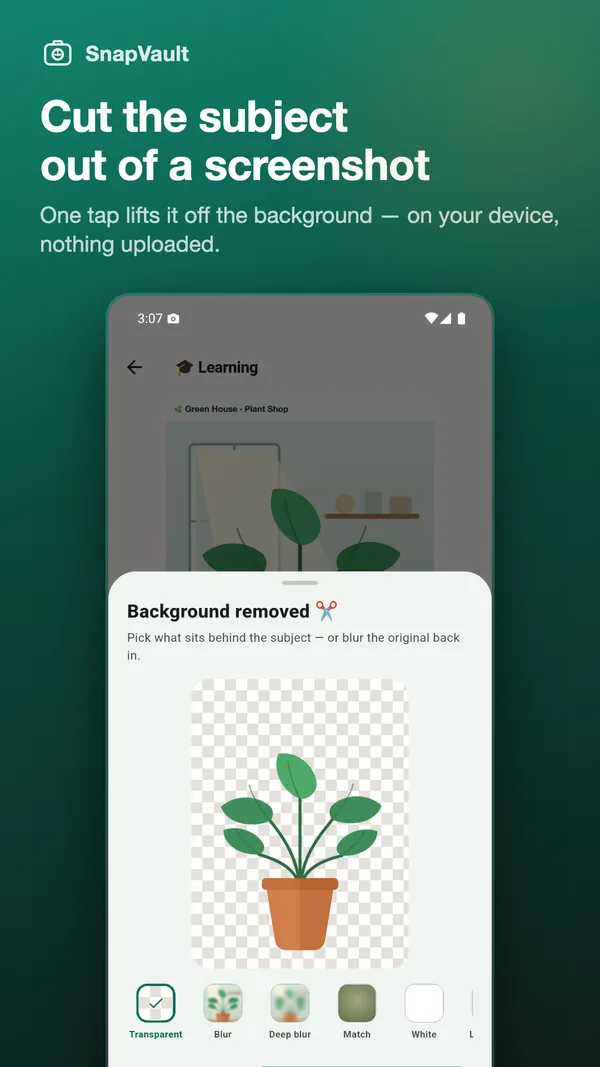
- Transparent keeps the alpha channel, which is what you want for a sticker or for dropping into a document.
- Blur and Deep blur put the subject back onto its own out-of-focus surroundings. This is the magazine-cover look, and because it reuses the very photo the subject came from, the colours always agree.
- Match samples the subject's own colours into a soft two-tone backdrop — useful when there is no original worth blurring, like a logo pulled off a web page.
- Plus a tile pattern and nine flat colours.
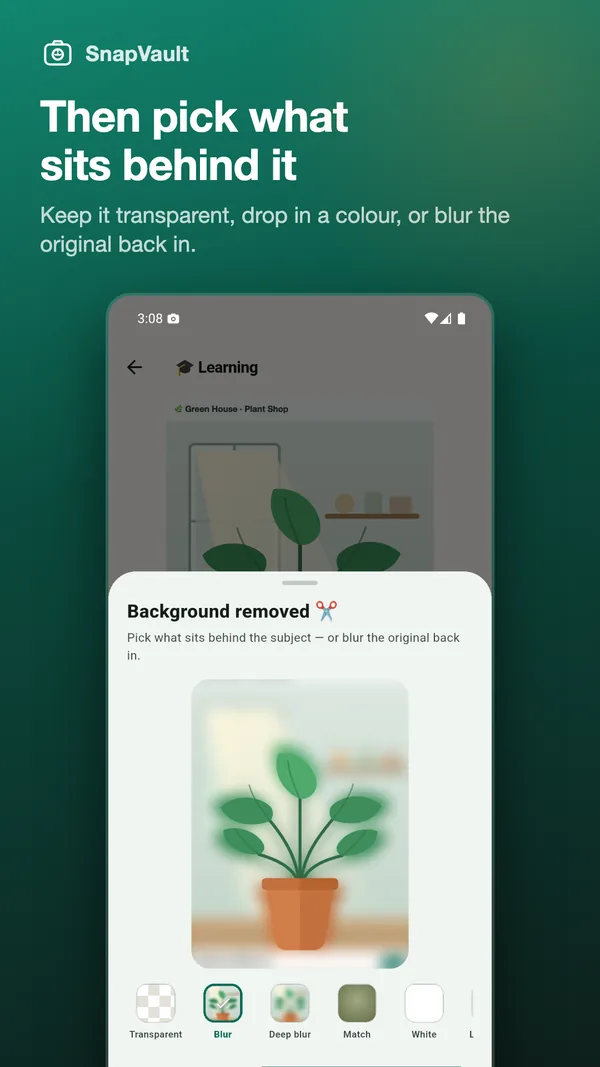
The result is saved as a new image tagged Cutout. The original is never modified — which is worth saying explicitly, because crop tools usually do modify it. And a transparent cut-out is drawn on a checkerboard in the library and the viewer, so a transparent PNG never shows up as an invisible card.
Nothing is uploaded, because there is nowhere to upload it to — SnapVault has no account and no server. Background removal is part of SnapVault Pro, which is a one-time purchase rather than a subscription; Play shows the price in your own currency.
Getting a good cut-out
Whichever tool you use, the model is looking for a subject, and that word is doing real work:
- One clear thing beats a busy scene. A person, a pet, a product, a piece of food — anything with an obvious edge against what is behind it.
- A screenshot of a user interface usually has no subject at all. A settings page or a wall of text is not a figure against a ground, and a good tool will tell you it found nothing rather than return a mangled shape. SnapVault says "No clear subject found in this screenshot" instead of failing quietly.
- Hair, fur and glass are the hard cases. Every segmentation model, local or cloud, struggles at soft edges. Blur backgrounds are forgiving here; a hard flat colour is not, because it puts a crisp line exactly where the model was least certain.
- Crop first if the subject is small in the frame. More subject pixels, better edge.
Which one should you use?
If you need one cut-out of something harmless, the web tool is right there and it works.
If your phone offers the built-in long-press lift and you only need to paste the result somewhere, use that — it is local and it is free.
If you do this regularly, or the pictures are ones you would not upload — receipts, documents, faces, anything from work — then doing it on-device and keeping the result somewhere organized is the version that does not require you to make the same judgement call every time.