How to organize screenshots on Android
Four ways to tame a gallery full of screenshots — from Android's built-in folders to OCR search — and the one habit that actually keeps it under control.
Most people do not have a screenshot problem. They have a retrieval problem.
The screenshots themselves are useful. A Wi-Fi password from a café, a receipt, a recipe, a bank reference number, a paragraph from a book worth remembering. You captured each one because it mattered for about ten seconds. The trouble starts a month later, when you need one of them back and you are thumb-scrolling through nine hundred images trying to remember roughly what week it was.
Here is what actually works on Android, from least to most effort.
1. Use the Screenshots folder your phone already has
Android files screenshots into their own folder — usually Pictures/Screenshots or DCIM/Screenshots. Most gallery apps surface this as an album.
This is worth knowing because it is the fastest way to narrow a search. If you know something was a screenshot rather than a photo, opening that album instead of your whole gallery cuts the haystack by an order of magnitude.
Where it falls down: the album is still just a reverse-chronological wall of thumbnails. It answers "show me screenshots" but never "show me the screenshot with the router password on it."
2. Search the text inside them with Google Photos
If you back up to Google Photos, you already have text search. Type a word into the search bar and Photos will surface images containing that word, because it runs optical character recognition over your library.
This is genuinely powerful and most people never try it. Search wifi, or a shop name from a receipt, and watch what comes back.
Where it falls down: it requires cloud backup — your screenshots are uploaded to Google's servers to be indexed. For a lot of what people screenshot (banking, medical, work documents, ID cards) that is exactly the trade some would rather not make. It also means the search only covers what you have backed up, and the results mix screenshots in with every photo you have ever taken.
3. Build albums by hand
You can create albums — Bills, Recipes, Work — and move screenshots into them.
Where it falls down: nobody does it. Manual filing is a task you have to remember to perform, and it competes with everything else you were doing on your phone. Two weeks in, the backlog is bigger than the sorted pile and the system quietly dies.
This is the crux of the whole problem, and it is worth being honest about: any screenshot system that depends on batch-tidying later will fail. Not because people are lazy, but because the moment of highest context — when you know exactly why you took the shot — is the moment you take it. An hour later that context is gone, and re-deriving it for two hundred images is miserable work.
4. Sort at capture time
The approach that survives is to file the screenshot in the two seconds after you take it, while you still know what it was for.
That means a system that interrupts you at the right moment, asks one question — where does this go? — and gets out of the way. One tap, done, no backlog.
This is the idea SnapVault is built around. When you take a screenshot it notices immediately, reads the text inside it on your device, suggests a collection and some tags based on what is actually in the image, and files it when you tap once. If it is a junk shot, you bin it there and then and it never reaches your gallery at all.
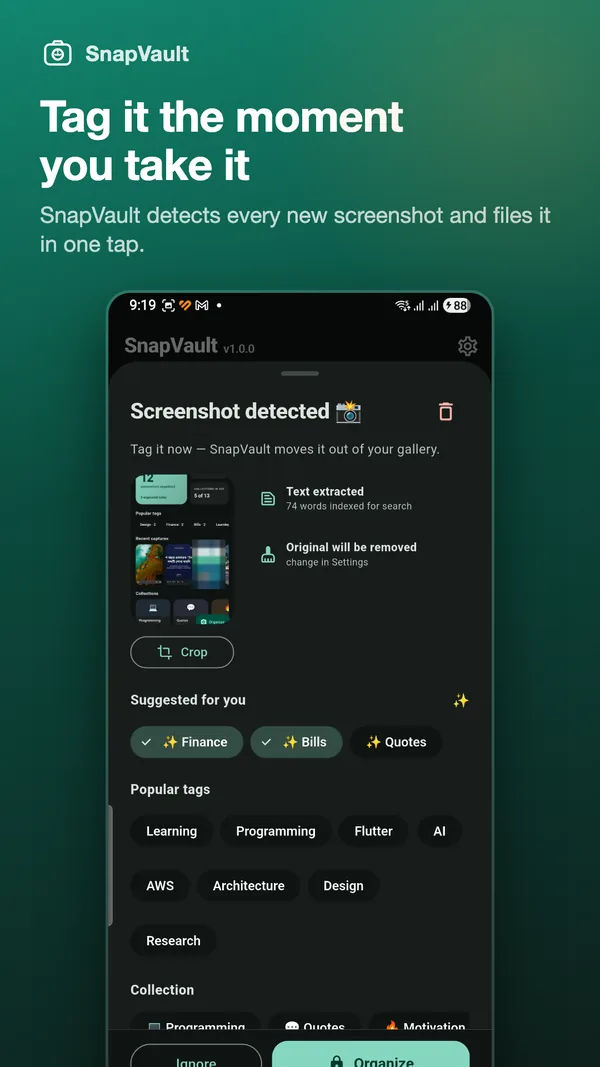
Because the text extraction happens on your phone rather than in a cloud, you get the same searchability Google Photos gives you without the screenshots leaving your device.
While you are at it: reclaim the storage
Screenshots are PNGs, and PNGs of a busy screen are surprisingly large — often 1–3 MB each. A thousand accumulated screenshots is a couple of gigabytes doing nothing.
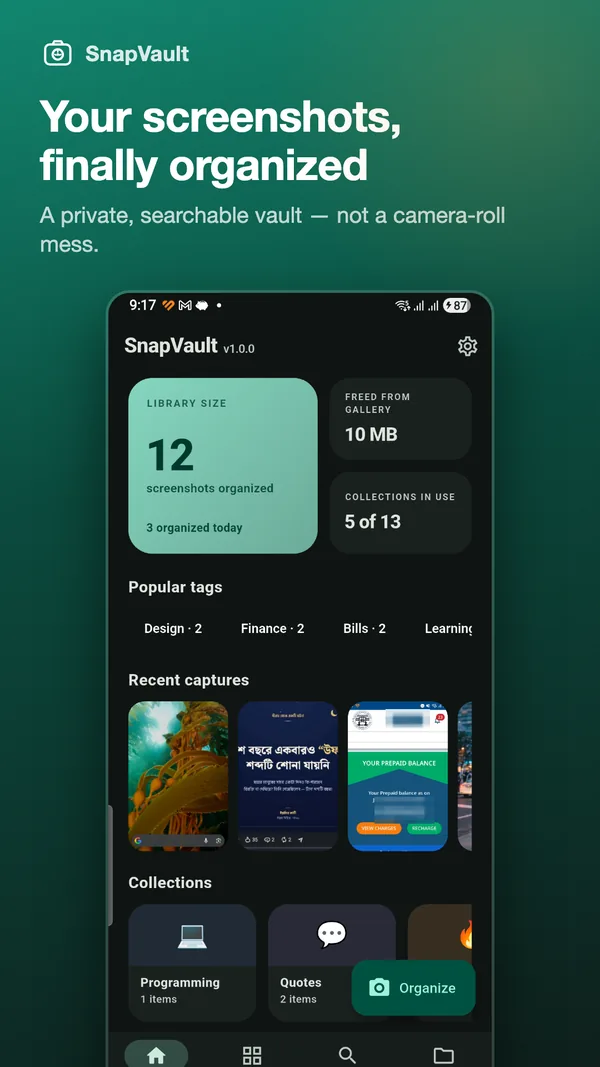
Two things worth doing:
- Delete the junk aggressively. A large share of screenshots are transactional: a QR code you needed for ten minutes, a confirmation you already acted on. If you sort at capture time, this becomes trivial, because the decision is obvious in the moment and impossible later.
- Do not keep two copies. If you move screenshots into an organizer, remove the original from the gallery rather than leaving a duplicate behind. That is the difference between an organizer that costs you space and one that gives space back.
A practical starting point
If you want to dig out from an existing pile without spending a Sunday on it:
- Open your Screenshots album and sort by oldest first.
- Delete anything transactional — QR codes, OTP screens, delivery confirmations, anything tied to a date that has passed. This is usually half of them and takes ten minutes.
- Do not attempt to file the rest. Leave them.
- Start sorting new screenshots at capture time from today.
The backlog stops growing immediately, and the pile you left behind becomes searchable rather than sorted — which, for old screenshots, is all you actually needed.
The goal was never a beautifully organized gallery. It was being able to find the router password in five seconds.