How to block porn on Android (without rooting or paying)
Android already has a device-wide content filter built in, and it takes two minutes to turn on. Here is how to set it up, what it misses, and how to stop it being quietly switched off again.
Most guides to this start by selling you something. This one starts with the setting Android already ships with, because it is free, it covers every app on the phone, and almost nobody knows it is there.
Then we will be honest about what it does not cover — which is the part that actually decides whether you relapse.
1. Turn on Private DNS with a filtering resolver
Every time an app or browser loads a site, your phone first asks a DNS resolver "what is the address for this domain?" Android lets you choose who answers that question, and some resolvers simply refuse to answer for adult domains.
Cloudflare runs one of these for free. Setting it takes about two minutes:
- Open Settings → Network & internet → Private DNS. (On Samsung: Settings → Connections → More connection settings → Private DNS.)
- Choose Private DNS provider hostname.
- Enter
family.cloudflare-dns.com - Save.
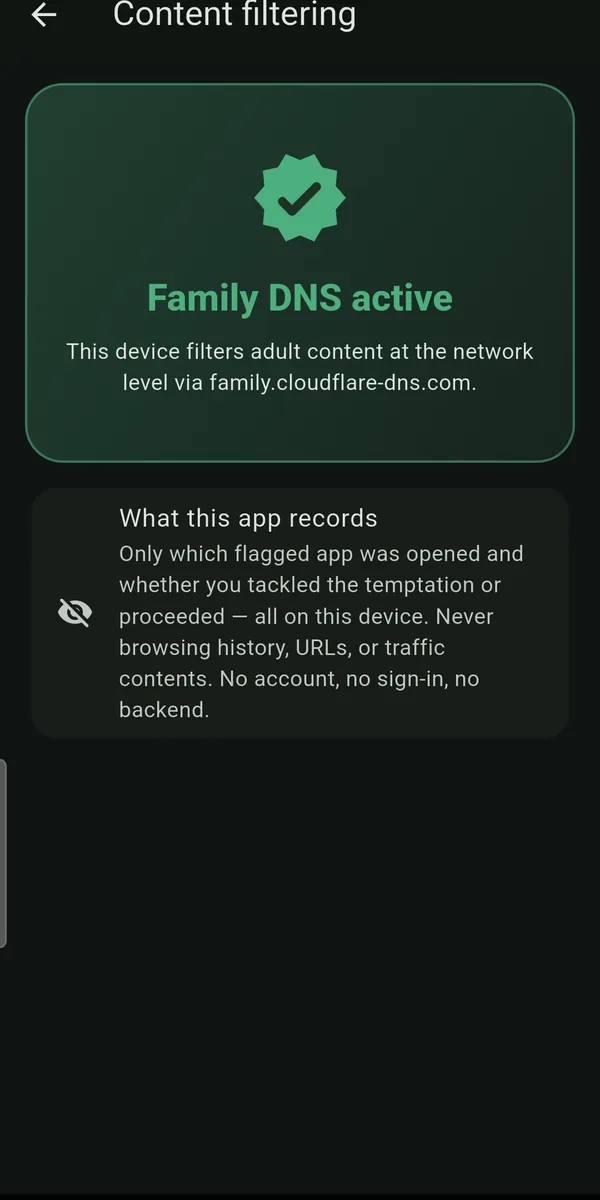
That is it. Adult sites now fail to resolve in Chrome, in any other browser, and inside apps — on mobile data and on Wi-Fi, because the setting travels with the device rather than the network. There is no app to install, no subscription, and no traffic routed through anyone's VPN.
What you get: device-wide filtering of adult domains, at the network layer, for free.
What it costs you: the occasional false positive, and DNS resolution moves to Cloudflare instead of your carrier — their families resolver commits to not selling that data, which is more than most carriers say.
2. Know exactly what this does not stop
A DNS filter is a good wall with three well-known doors, and you should hear about them from a tool that wants you to succeed rather than from your own three-in-the-morning ingenuity:
- It is one toggle away from being off. The same Settings screen that turned it on turns it off, in five seconds, with no confirmation and no trace. This is the failure mode that matters — not clever circumvention, just a quiet tap during a bad hour.
- A VPN can bypass it. Some VPN apps route DNS themselves, which sidesteps the resolver entirely.
- It does not filter apps that are not websites. Social feeds, video apps and messaging apps serve plenty of what people are trying to get away from, and they resolve perfectly ordinary domains to do it.
Point three is where most people are surprised. If your habit lives in an algorithmic feed rather than on a tube site, a DNS filter barely touches it.
3. Add friction where the filter cannot reach
Which brings us to the uncomfortable part: the wall is not really the problem. The reflex is.
Almost nobody decides to open a porn site or a doomscroll app. The phone comes out during a gap — bored, tired, lonely, avoiding a hard task — and the thumb has arrived somewhere before any decision was made. A filter that stops one route does nothing about a reflex that has four others.
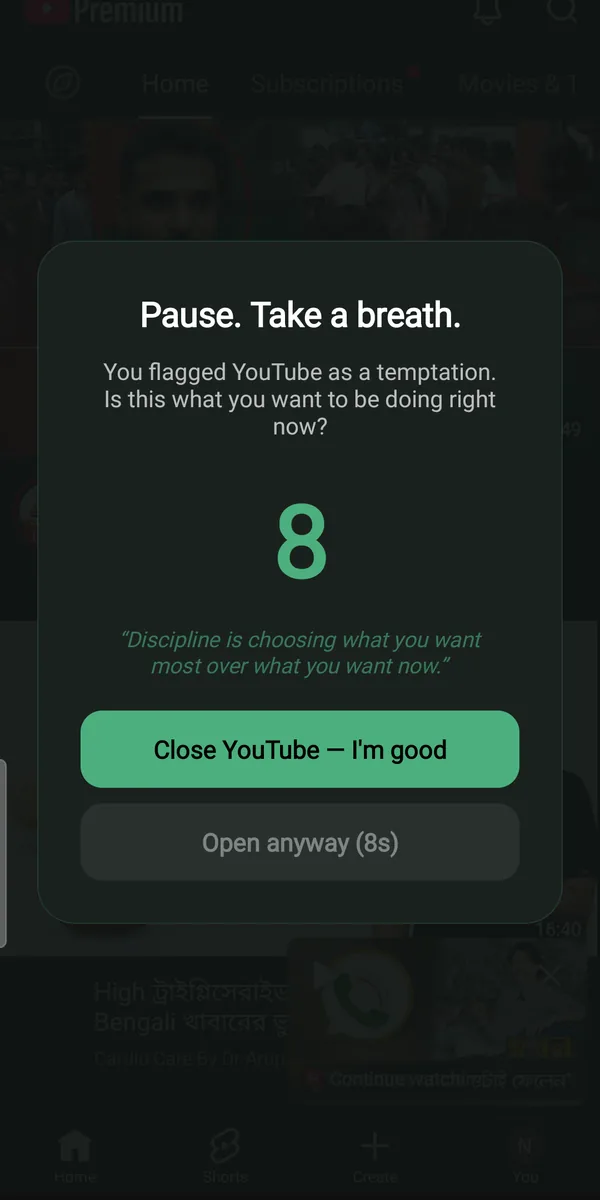
Friction attacks the reflex directly. The idea is to make the impulsive path cost a few seconds of conscious attention, because an urge that has to be held for ten seconds is a very different thing from one acted on instantly. Ten seconds is usually enough for the rest of you to catch up and ask what you are actually doing.
This is what TemptShield does. You flag the apps that pull you in — a browser, a feed, a video app, whatever yours are — and when one comes to the foreground a full-screen pause appears over it with a countdown. "Close it" works immediately. "Open anyway" stays locked until the timer finishes. You are never locked out; you just cannot get in thoughtlessly.
It also watches the setting from step 1. TemptShield reads Android's Private DNS status continuously and shows a green shield while your filter is active — and a red card, tappable straight through to the Android setting, the moment it is switched off or changed. It does not do the filtering itself and cannot force the setting back on for an ordinary install; what it removes is the silence around that toggle, which is what a five-second relapse relies on.
4. Close the other easy doors
Ten minutes of housekeeping, done once:
- Play Store content restrictions. Play Store → profile → Settings → Family → Parental controls. Set a PIN you do not memorise easily, and restrict app installs by maturity rating. This stops the "just install a different browser" move.
- SafeSearch. Turn it on in Google's search settings, and in YouTube's Restricted Mode.
- Delete the apps you are not defending. A DNS filter cannot help with an app that should not be on the phone at all.
- Give the PIN to someone else. If a code is only in your head, it is only ever as strong as the worst hour of your week.
A realistic setup
Stack the three layers and each one covers the previous one's gap:
| Layer | Covers | Gap it leaves |
|---|---|---|
| Private DNS (Cloudflare Family) | Adult sites across every app | Can be switched off; misses in-app feeds |
| Friction pause on flagged apps | The reflex, in feeds and browsers alike | You can still choose to proceed |
| Play restrictions + SafeSearch | The obvious workarounds | Nothing at the moment of the urge |
None of these is willpower. That is the point — willpower is exactly the resource you do not have at the moment you need it, and every layer here is something you set up while calm so that your tired self meets a slower phone.
When an app is not the answer
If this is costing you sleep, money, work or a relationship, treat it as bigger than a settings problem. Filters and friction are good at reducing the number of unplanned encounters; they are not treatment, and they do not touch what the habit is regulating for you. A therapist who works with compulsive behaviour will get further in a month than any configuration will in a year. Use the tools to buy quieter days while you do the real work — that is a genuinely good use for them.