How to find text inside a screenshot on Android
Your phone can read the words inside your images. Here are the three ways to search screenshot text on Android, and what each one costs you in privacy.
You screenshotted something with a number on it — an order reference, a policy number, a Wi-Fi password, a flight code. Now you need that number, and scrolling your gallery is not finding it.
The good news is that reading text out of images is a solved problem, and your phone can do it. The question is which route you take, and what each one costs.
What OCR actually is
Optical character recognition turns the pixels of a word into the word itself. Once a screenshot's text has been recognized, it becomes searchable in the same way a note or an email is.
The important part for Android users: modern OCR runs perfectly well on the phone itself. Google ships an on-device text recognition library that apps can use without sending anything anywhere. Cloud OCR exists and is marginally better on hard cases like handwriting, but for screenshots — clean, high-contrast, screen-rendered text — on-device recognition is essentially as good.
That matters, because it means privacy and searchability are not actually a trade-off. They only look like one depending on which tool you pick.
Option 1: Google Lens, for one image at a time
Open the screenshot in your gallery and tap the Lens icon. It will recognize the text and let you select, copy or search it.
Good for: pulling a number out of an image you have already found.
Not good for: finding the image in the first place. Lens works on the picture in front of you; it has no index of your library.
Option 2: Google Photos search, for your whole library
If your screenshots back up to Google Photos, its search bar already searches the text inside them. Type a word and matching images come back.
Good for: searching everything at once, with no setup, if you already use Photos.
The cost: the index lives in the cloud, which means your screenshots do too. For holiday photos most people shrug at that. For screenshots it is a different calculation, because of what people screenshot: bank transfers, prescriptions, payslips, ID documents, work systems under NDA. Those are among the most sensitive images on the device, and they are exactly the ones you most want to find again.
There is also a practical annoyance. Photos searches your entire library, so a search for a word that appears in a screenshot competes with every photo you have ever taken.
Option 3: An on-device index built for screenshots
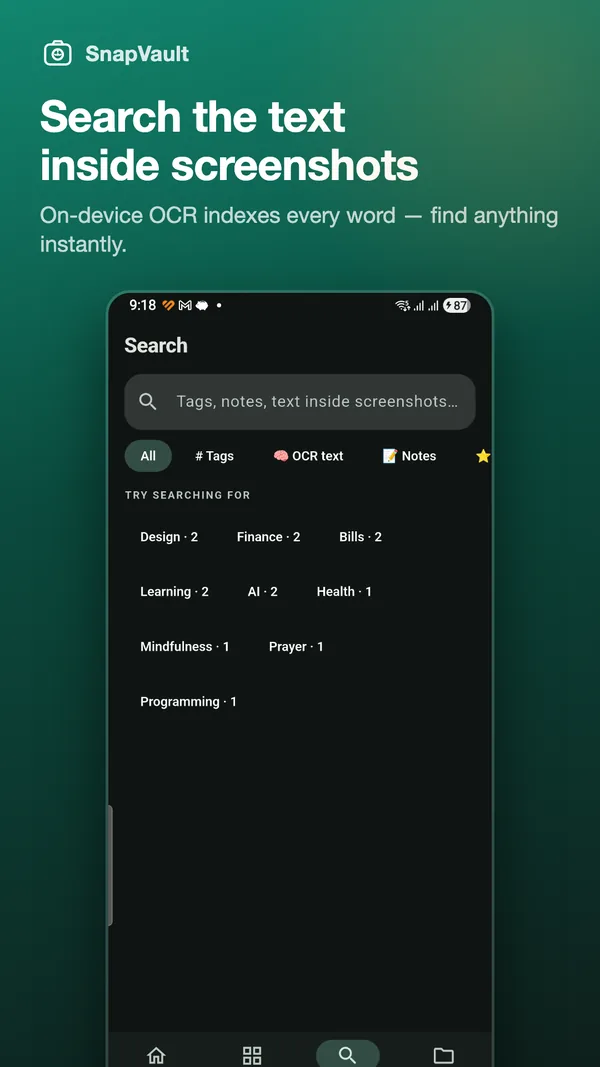
The third route is an app that runs OCR locally as each screenshot arrives, keeps the index on the phone, and searches only your screenshots.
This is what SnapVault does. Every screenshot you file gets its text extracted on-device and indexed alongside whatever tags and notes you added. Searching hits all three at once — so "wifi" finds the screenshot whether the word was in the image, in a tag you applied, or in a note you typed.
Nothing is uploaded, because there is nowhere to upload it to: the app has no servers and no account.
Which to use
| You want | Use |
|---|---|
| Text out of one image you are already looking at | Google Lens |
| To search everything, and already back up to Photos | Google Photos search |
| Screenshot search without cloud upload | An on-device organizer |
Making search actually work
Whichever tool you use, two habits make an enormous difference:
Add one word of your own. OCR gives you the words that were on the screen. It cannot give you the words that were in your head. The screenshot of a router label contains the SSID and password but not the word "home" or the name of the flat you were staying in — and that is what you will search for eighteen months later. One tag at capture time closes that gap.
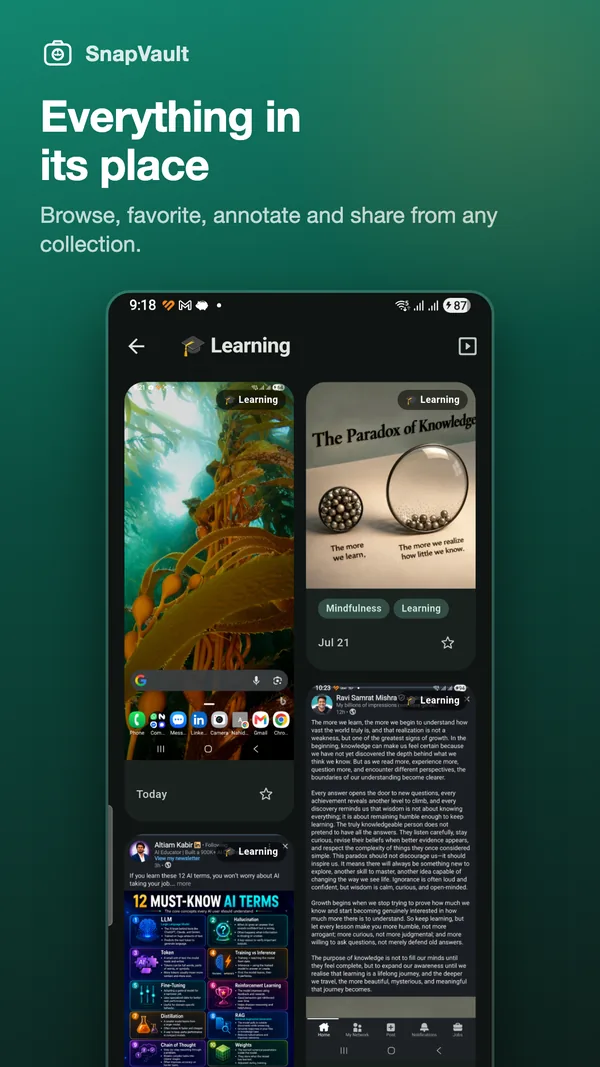
Screenshot the part with the text in it. A full-screen capture of a busy page yields a lot of noise. Cropping to the block you care about makes the OCR cleaner and the search results sharper.
The takeaway
Every Android phone can read the text in your screenshots. The choice is not whether to have OCR — it is whether the index of your most sensitive images sits on a server or on your phone.
For most people the honest answer is: use Photos search if you already live in Photos and do not screenshot anything sensitive, and use an on-device index if you do.