How to add a delay before distracting websites in Chrome
Chrome has no built-in way to slow down a site you keep opening. Here are the options that exist, what each one costs you, and how to set up a ten-second pause that you will not disable by Thursday.
There is a specific thing people go looking for, and Chrome does not have it: a way to make one website slower to open without making it unavailable.
Not blocked. Not scheduled. Not counted at the end of the week. Just slow enough, in the moment, that opening it is a decision rather than a keystroke.
This post covers what Chrome can and cannot do here, the three categories of tools that exist, and how to set up a delay that survives contact with a bad day.
What Chrome offers on its own
Very little, and it is worth knowing so you stop looking:
- Site settings (
chrome://settings/content) control permissions — camera, notifications, JavaScript. There is no timing control and no interstitial. - Profiles are the closest native answer. A separate "work" profile with different bookmarks, no session cookies for the sites you avoid, and no autocomplete history genuinely helps, because it breaks the muscle memory that makes the habit fast. It also does nothing once you type the domain in full.
- Focus mode / Do Not Disturb silence notifications. They do not touch navigation.
chrome://flagshas nothing for this, and hosts-file edits are the same thing as blocking with more steps and worse failure modes.
So this needs an extension. The question is which kind.
The three kinds of tool, and what each one costs
1. Blockers. The site is unavailable during a window you set. These work — for about a week. The failure is predictable and it is not about willpower: eventually the tool stands between you and something you legitimately need, at which point it stops being your plan and becomes your opponent. You disable it "just for now". Now-forever begins. Blockers with a strict mode and no escape hatch fail slightly differently: you keep them for longer and then remove them permanently, with feeling.
2. Trackers and time budgets. Dashboards, weekly reports, screen-time totals per domain. Genuinely useful for finding out where the time is going, and almost useless for changing it: a number you read on Sunday cannot intervene at the moment on Tuesday when your hands opened a tab.
3. Delays and friction. The site stays available and gets slower to reach. You navigate, something appears first, and after a few seconds you can continue. Nothing is ever unavailable, so there is never a moment where the tool has to be defeated to get work done — which is exactly why it survives.
The third one gets far less attention than the first, and it is the one with the best evidence behind it. Interrupting an automatic behaviour at the moment it fires beats motivation, punishment and measurement, and it does not need to be a big interruption. It needs to exist.
Setting up a ten-second pause
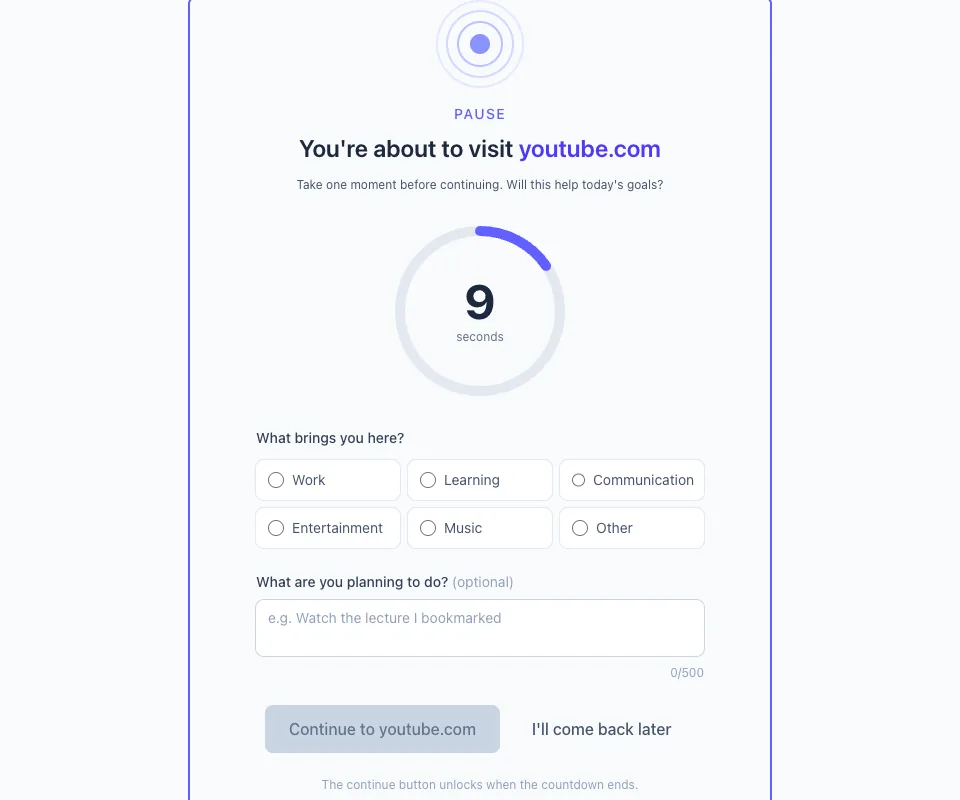
TemptShield for Chrome is a delay tool: free, open source, and built so that continuing is always possible. You add the sites you want to be deliberate about, and the pause appears before them.
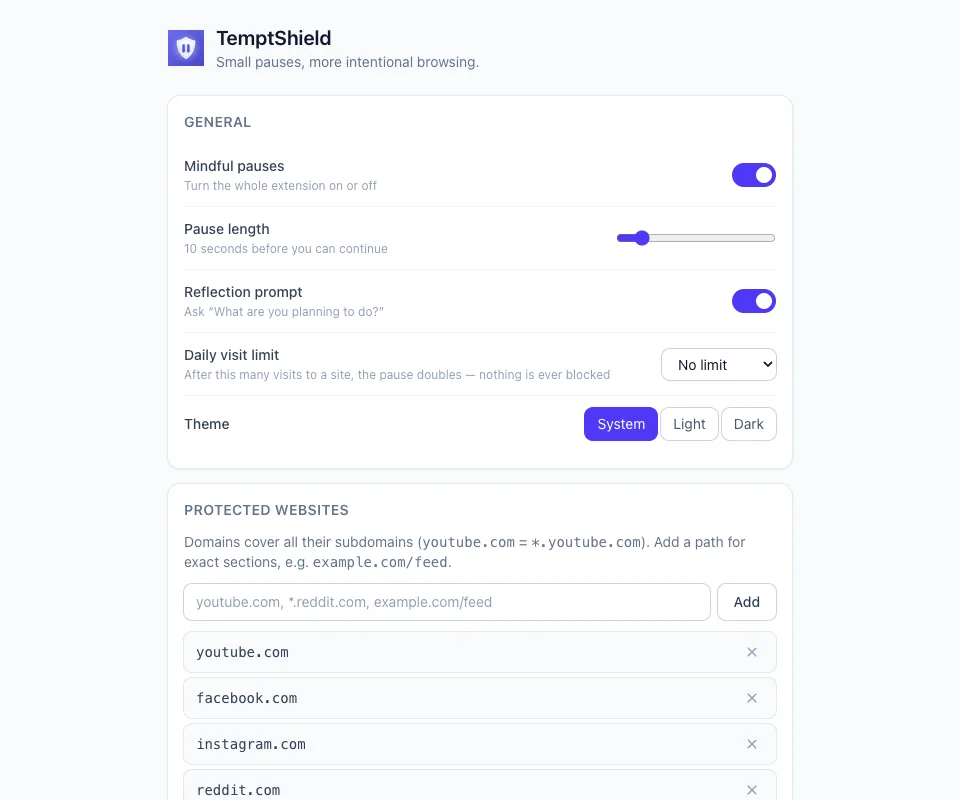
Choosing what goes on the list
Matching is more flexible than most lists of this kind, and using it properly is the difference between a tool that helps and one that nags:
| What you type | What it covers |
|---|---|
youtube.com |
The domain and every subdomain — m.youtube.com, music.youtube.com, all of it. |
*.reddit.com |
The same idea written explicitly, when you want the wildcard visible. |
example.com/feed |
Only that section of the site. Everything else on the domain loads normally. |
That third row is the one people miss. If your problem is a social network's home feed but you use its messages every day, protect the-site.com/feed and leave the rest alone. You get the pause exactly where the habit lives and nowhere else — and a tool that never interrupts you pointlessly is a tool you keep.
Start with one site. The one you open without deciding to. You already know which it is.
Choosing the length
The default is ten seconds and the range runs from three to a hundred and twenty. Ten is the right answer far more often than people expect:
- Long enough that the reflex cannot complete, and that you notice you are waiting.
- Short enough that you never dread it, which is what makes it survive month two.
If ten seconds stops registering after a few weeks, raise it a little. Starting at sixty is how this becomes something you switch off on Thursday.
The other two settings
The reflection prompt asks "What are you planning to do?" before you continue. It is optional and it is doing more work than the countdown: naming an intention is what moves a visit from the automatic part of your brain into the deliberate one.
The daily visit limit is off by default. Set it to, say, five visits to a given site, and after the fifth the pause simply doubles for the rest of the day, with one gentle notification. There is no wall at the end of it — the sixth visit costs twenty seconds instead of ten, and that is all. Escalating cost, never a locked door.
There is also a bypass window, set to five minutes by default: once you continue to a site, that tab is left alone for a few minutes so ordinary browsing does not turn into a series of interruptions.
Check the permissions before you install anything
This is the part of the how-to that most posts skip, and it is the part that matters most, because the category is full of extensions that ask for far more access than the job needs.
An extension that says "read and change all your data on all websites" can, in principle, see every page you load — every message, every dashboard, every form you fill in. Plenty of blockers request exactly that, because injecting a block page into the site is the easy way to build one. You are handing your entire browsing session to whoever maintains that extension, and to whoever buys it from them later. Extensions do get sold, and the new owner inherits the permission grant.
There is a cheaper way to build this, and it is worth knowing so you can spot it: webNavigation tells an extension that a tab is heading for an address, which is enough to redirect it to a pause page before the site loads. No access to page contents is needed, so none is requested.
That is how TemptShield is built. Four permissions and no host permissions at all:
| Permission | What it is for |
|---|---|
storage |
Your settings and your local statistics. |
webNavigation |
Noticing that a tab is heading for a site on your list. |
alarms |
Deleting statistics older than thirty days. |
notifications |
One heads-up when you reach a daily limit you set yourself. |
No host permissions means no content scripts, which means it has no mechanism for reading or changing anything on a page — a limit imposed by the browser, not a promise in a listing. It also makes zero network requests, so your list of protected sites and any reflections you type stay in your browser. If that matters to you, the source is public and the privacy policy is short.
What to expect in the first week
Days one and two feel silly. The reflex fires, hits a countdown, and you sit there slightly embarrassed. Good — that is the mechanism working, not a problem with it.
Around day four you start continuing on purpose. You will pick "work", wait, continue, and get what you came for. That is a success, not a failure. Being deliberate was the goal; abstinence was not.
By the end of week one you catch yourself earlier. Hand halfway to a new tab, before the pause has even appeared. That is the point at which the extension has mostly done its job, and it is worth keeping around anyway — the reflex comes back whenever you get tired enough.
And if the same habit lives on your phone, which it usually does, TemptShield for Android does the same thing for apps rather than tabs.